PowerOffice Integration
Merchants can connect FOODSTED POS with PowerOffice by simply following the steps outlined below to complete the onboarding and securely enable sale data synchronization between the two systems.
Step #1 → Integration Setup
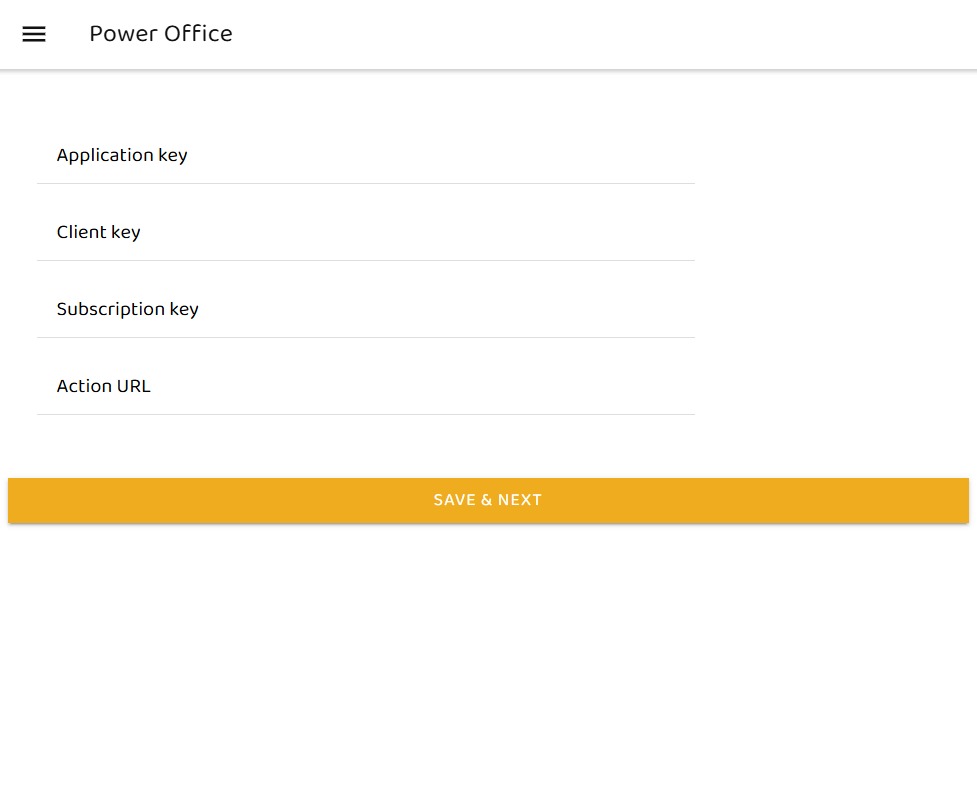
The user logs in to the FoodSted POS, navigates to Settings → Integrations → PowerOffice, enters all the required fields, and then clicks the Save & Next button to continue.
Step #2 → Generate Access Token
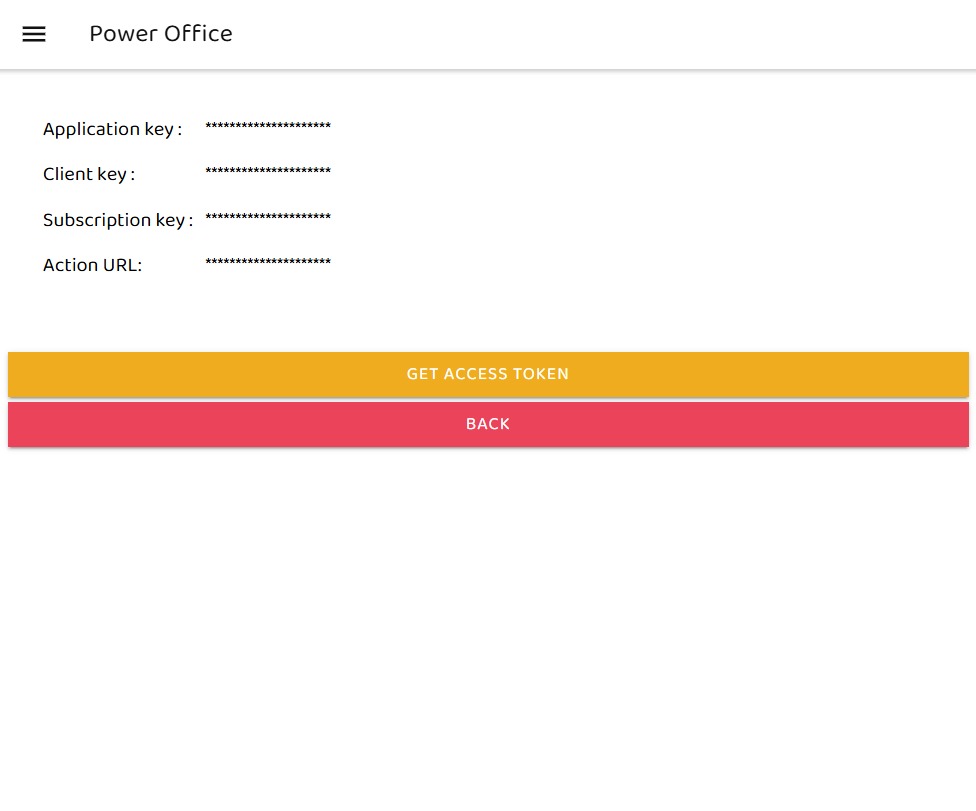
In this step, the user clicks the “Get Access Token” button. Once the access token is generated, the user can proceed to the next step of the process.
Step #3 → Token Management
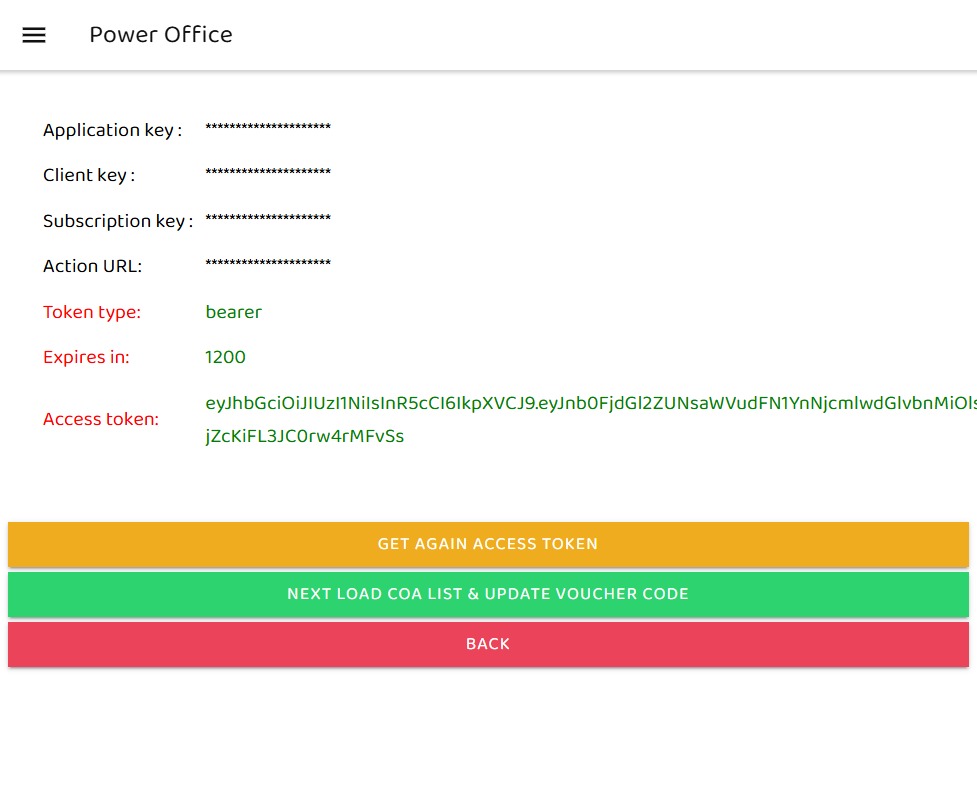
In this step, the user receives the access token and can generate a new one by clicking the “Get Access Token Again” or “Refresh Token” button after the expiration time of 1200 seconds. After this, the user clicks the “Next: Load COA List & Update Voucher Code” button to proceed further.
Step #4 → Account Selection
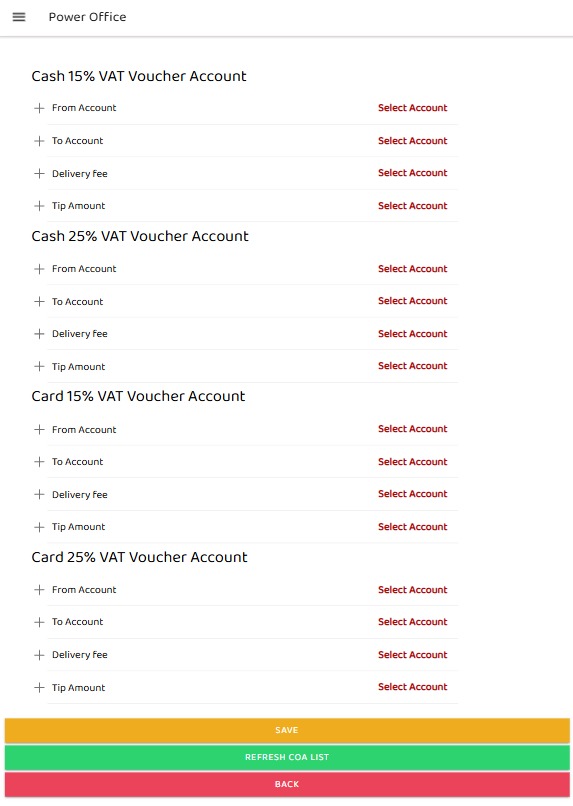
In this step the user will select account
Step #5 → Choose Account
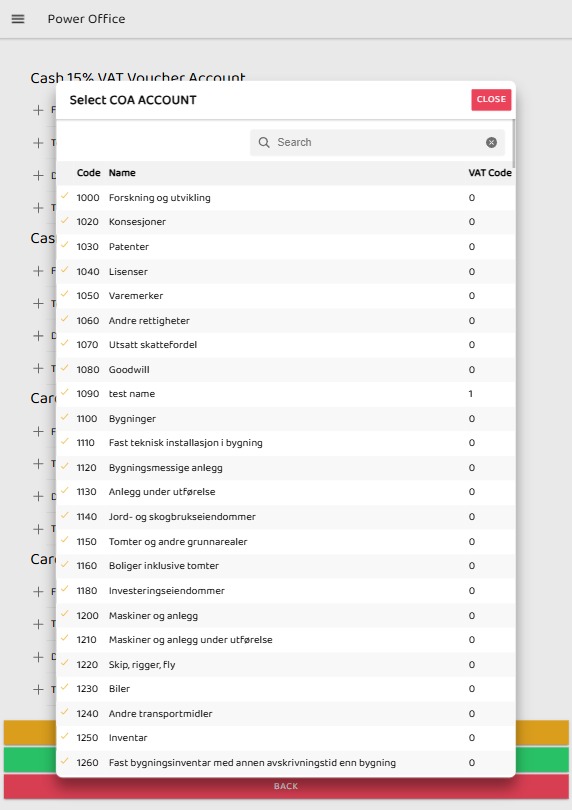
From Step 4, when the user clicks the “Select Account” button, a pop-up will appear allowing the user to choose from the available accounts.
Step #6 → Account Confirmed
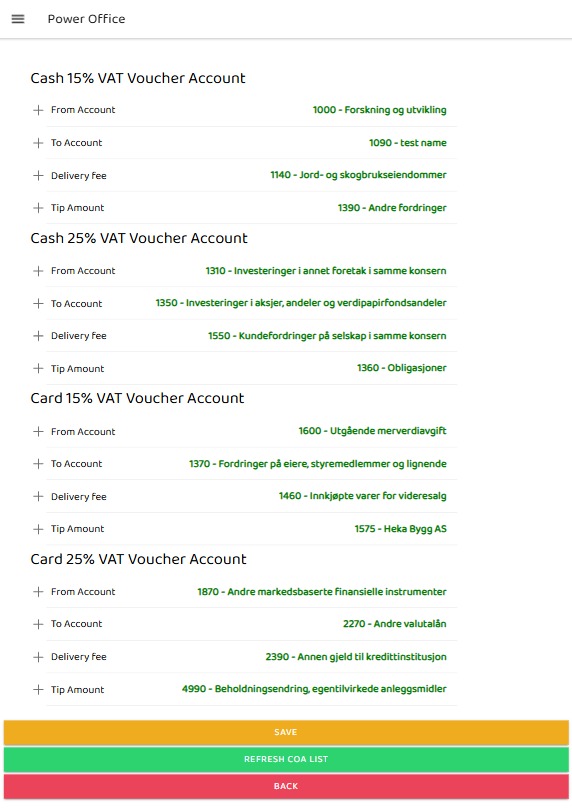
After completing Steps 5, the selected account will be displayed as shown below.
Step #7 → Auto Upload Setup
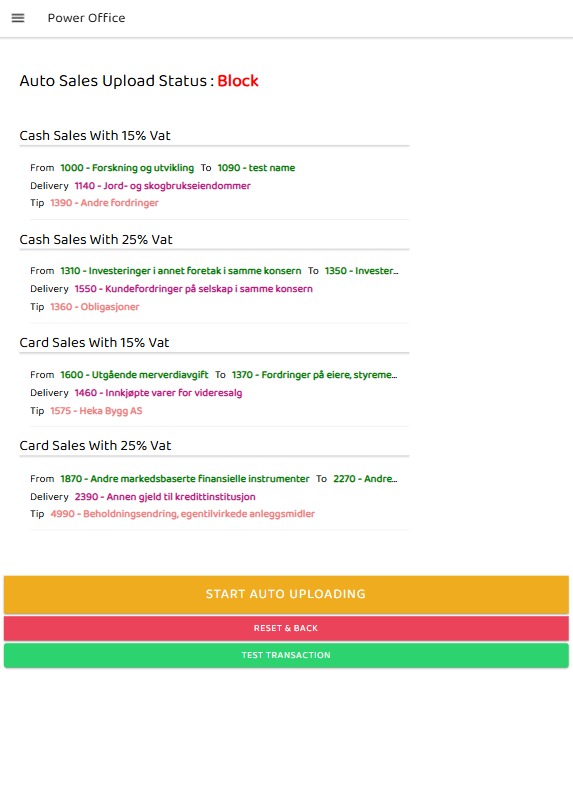
After clicking Save in Step 6, this view will appear. By default, it will be in a blocked state and will display a Start Auto Uploading button.
Step #8 → Activate Auto Upload
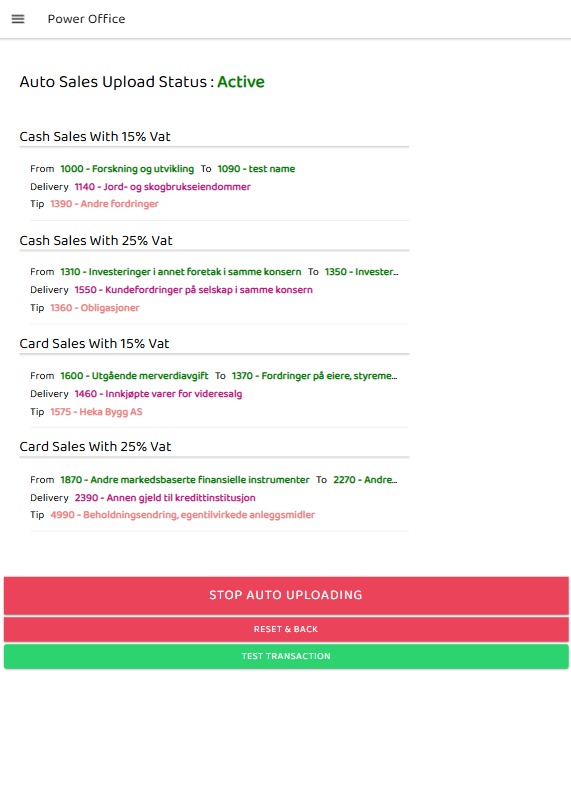
From Step 7, when the user clicks the Start Auto Uploading button, the status changes from Blocked to Active, as shown below. From here, the user can also stop auto uploading by clicking the same button again.

FOODSTED
© Copyright 2025 All rights reserved